

Cookie Consent for Divi 5
A cookie banner that looks like the rest of your site, because you design it in the Visual Builder. Visitors choose which cookie categories to allow, and the tracking codes you add load only after they say yes.

Divi 5 Ready
ASK FIRST, TRACK LATER
A consent banner that looks like the rest of your site
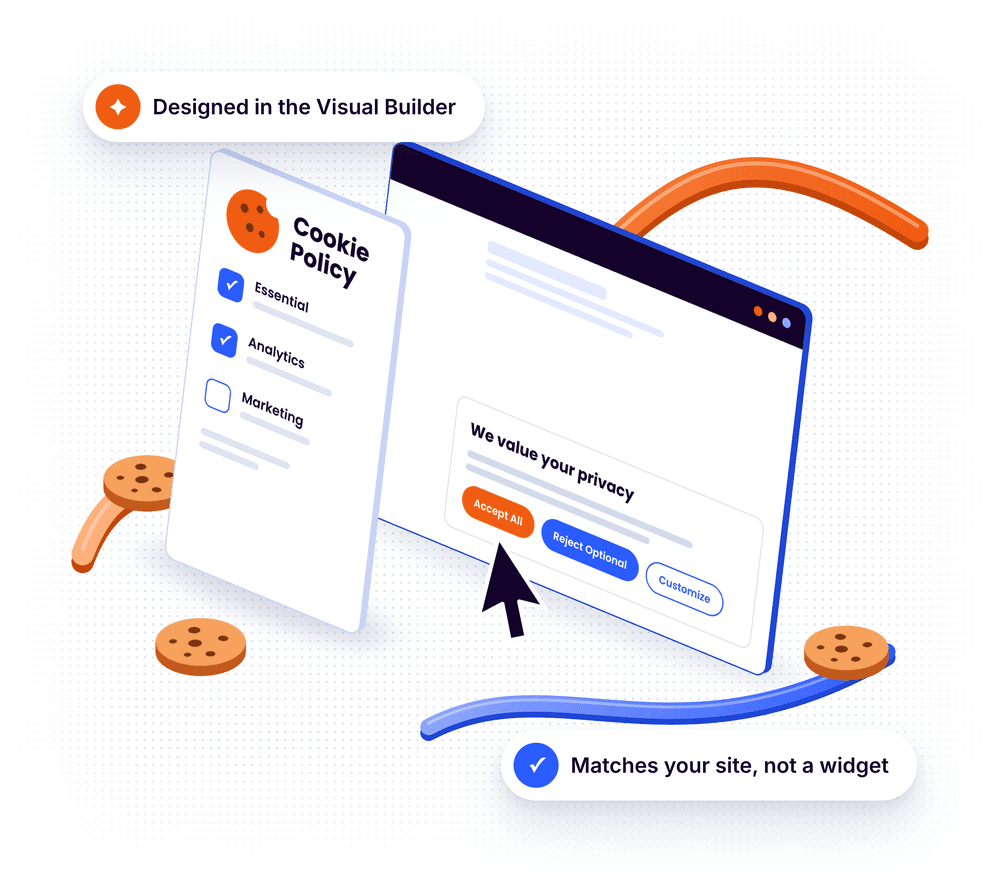
Cookie Consent adds a banner and a preference center to your Divi 5 site. Visitors choose which cookie categories to allow, and the tracking codes you add load only after they say yes. You design it in the Visual Builder with the controls you already know from Divi, so it matches your site instead of looking like a third-party widget.
Banner or Bar
Four looks, one feature
Pick a compact banner or a full-width bar, then make it yours. Every look below was styled with the built-in settings, without custom CSS.

Light Banner
A compact banner in one of nine positions, with Accept All, Reject Optional and Customize.

Dark Banner
Background, text, link and button colors each have their own setting.


Full-Width Bar
Switch the style to Bar and the prompt spans the whole screen, in a light or a dark design.

PREFERENCE CENTER
Visitors decide, category by category
Customize opens the preference center. Visitors switch each category on or off and see which cookies belong to it.
Four categories: Essential, Functional, Analytics and Marketing
Rename the categories and rewrite their descriptions
Choose which categories are always active
Cookies from your declaration are listed under their category
VISUAL BUILDER
Design it where you design everything else
Open any page in the Visual Builder and click the cookie icon in the left bar. The banner previews on the page while you edit.
Banner or Bar, in one of nine positions
Separate values for tablet and phone
Colors with hover states, fonts, buttons, toggle switches and corner radius
Click any text in the preview to edit it in place

WordPress Admin
Your cookies and scripts in one place
Both lists live under Divi Pixel → Site → Cookie Consent.
Cookie Declaration
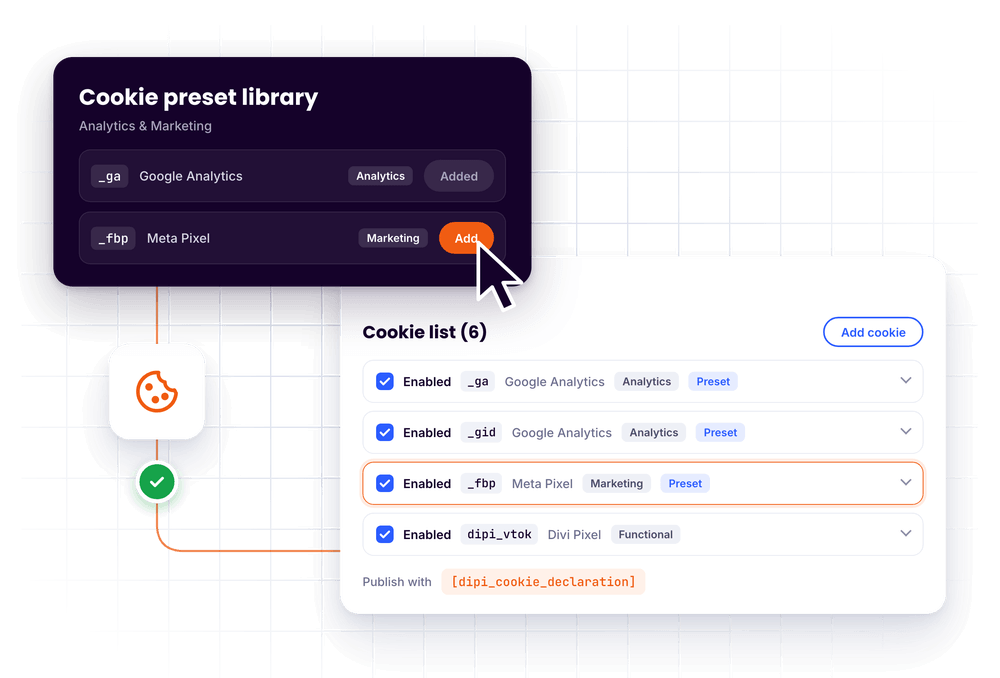
List your cookies with provider, category, expiration and purpose. Start from the preset library or add your own rows, then publish the list with a shortcode.
Scripts After Consent
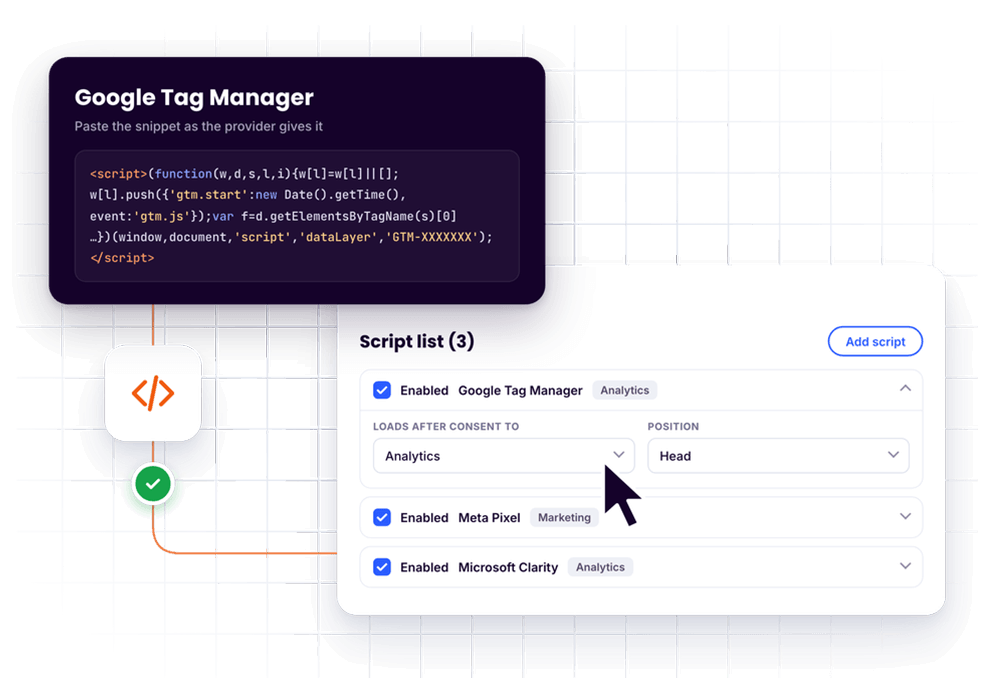
Paste a tracking snippet as the provider gives it, pick its category and choose head or footer. It runs only after the visitor allows that category.
Everything Included
One switch, a complete consent setup
Cookie Consent covers what most Divi sites need to ask for consent: the banner, the preference center, your cookie list and your tracking codes.
Banner or Bar
A compact floating banner or a full-width bar.
9 Positions
Corners, edges or center, picked on a position grid.
Live in the Visual Builder
Preview the banner on the page and edit texts in place.
Full Design Control
Colors, fonts, buttons, switches, radius and widths.
Preference Center
Essential, Functional, Analytics and Marketing.
Cookie Declaration
List your cookies and publish them with a shortcode.
Preset Library
Editable rows for Google, Meta, Microsoft, TikTok and more.
Cookie Detection for Admins
Cookie names seen while you browse are suggested.
Scripts After Consent
Tracking snippets run only after their category is allowed.
Google Consent Mode v2
Sets the defaults and updates them on every decision.
WordPress Consent API
Plugins that support it can follow the decision.
Cache-Friendly
Same HTML for every visitor, decisions in the browser.
Shortcodes
Cookie table and a Cookie Settings button for any page.
Reopen Button
Visitors can change their mind at any time.
Built-in Integrations
Vote, Poll, Countdown and YouTube embeds can wait for consent.
Connected
Plays well with your stack
The visitor decides once. Cookie Consent passes that decision on to the tools that need it.
Google Consent Mode v2
One toggle sets the denied defaults before your Google tags load and sends an update as soon as the visitor decides.
WordPress Consent API
Keeps the WordPress Consent API in sync, so plugins that support it can follow the decision.
Caches and CDNs
Every visitor gets the same HTML and the decision is handled in the browser, so full-page caching keeps working.
Three Steps
From switch to banner in minutes
1
Turn the feature on
Go to Divi → Divi Pixel → Site → Cookie Consent and switch on Enable Cookie Consent.

2
Design the banner
Open any page in the Visual Builder and click the cookie icon in the left bar to style the banner.

3
Add cookies and scripts
List your cookies in the Cookie Declaration and paste your tracking snippets under Scripts.

Good to know
Questions, answered
Enhance your Divi Theme with Custom Settings and New Modules. Start Creating Awesome Websites with Divi Pixel
We offer a 14 Day Money Back Guarantee, so joining is Risk-Free!