Business Hours and MCP Integration for Divi 5
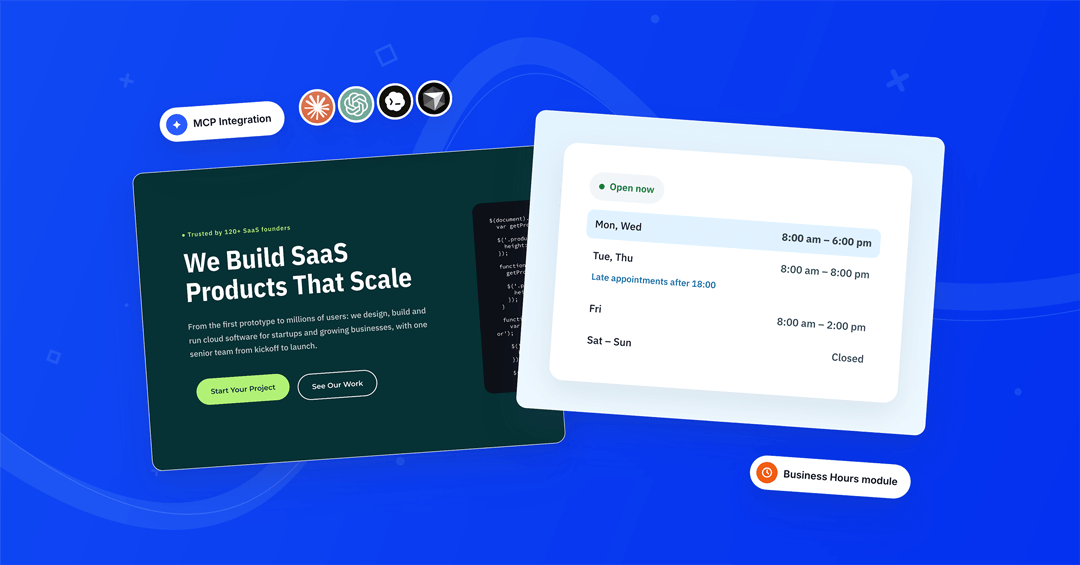

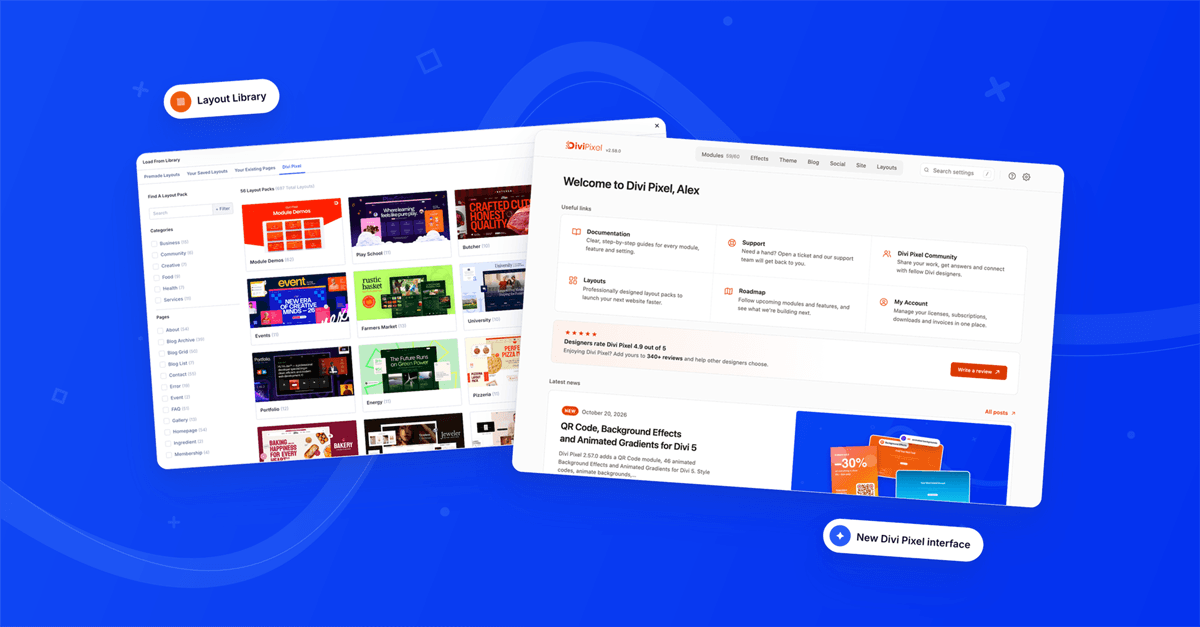
Last release we shipped the Layout Library and a brand new interface, a whole new way to start a Divi 5 website. This release is about saving you even more time. It brings a new Business Hours module and a completely new way to build: the MCP integration.
Business Hours lists your opening hours and tells visitors, live, whether you're open right now, with split shifts, special dates and today's row highlighted. The MCP integration connects AI assistants like Claude or ChatGPT to your site, so they can build sections, edit pages and start from the Layout Library, while every change lands in a draft for you to review. And when you need our help, you can now grant our support team temporary access to your site with one click, without sending a password. All three work without a line of code.
Contents
Business Hours: show visitors when you're open, right now
"Are you open now?" is one of the first things visitors want to know. Until now, opening hours on a Divi site meant a Text module or a table you had to keep up to date by hand, and it never told anyone whether the doors were actually open. The Business Hours module lists your hours and shows a live status that updates by itself, based on your site's timezone.
Each row is its own child module. A row covers one day or a group of days, so Monday to Friday can be a single row labelled Weekdays.
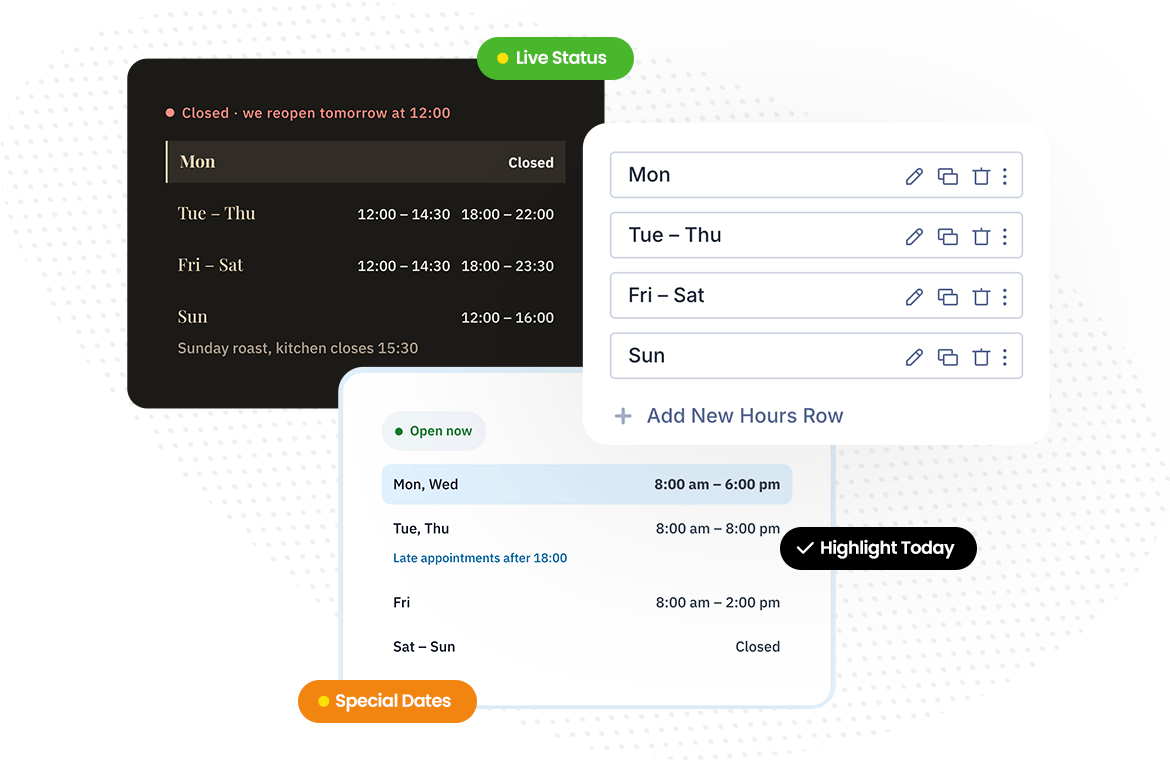
What you can control:
- Live status. Open, Closed, Opens Soon and Closes Soon, each with its own text, text color and dot color. Show it above or below the list.
- Soon threshold. Choose how many minutes before opening or closing the Opens Soon and Closes Soon messages appear.
- Highlight today. Today's row is marked automatically, with its own font, background and border.
- Split shifts. Add a second shift to any row, like 09:00 to 12:00 and 14:00 to 18:00, for shops and practices that close for lunch.
- Closed, 24 hours and special dates. Mark a row as closed or open 24 hours with your own text, and add rows for a specific date, like a public holiday.
- Notes and labels. Add a short note under a row, like "By appointment", or replace the day names with your own label.
- Time format. Follow your WordPress time setting, or show 24-hour or 12-hour times, with your own range separator.
- Status only. Hide the list and keep just the live status, for a compact "We're open" badge in a header or footer.
Every part has its own design settings. Day names, hours and notes each get their own font, rows get their own background, border and spacing, and the status badge can be styled like a button. It's a natural fit for restaurants, cafés, salons, clinics, gyms and shops.

MCP Integration: build Divi 5 pages with your AI assistant
AI assistants are great at writing copy and planning a page, but until now they couldn't build one. You got a description or a code snippet, and still had to rebuild everything in the Divi Builder by hand. With the MCP integration, assistants like Claude or ChatGPT build real Divi 5 sections and pages on your site with Divi Pixel modules, and every result is regular Divi 5 content you can edit like anything else.
MCP (Model Context Protocol) is the open standard AI assistants use to work with other apps. WordPress supports it through the MCP Adapter plugin, and Divi Pixel now adds its own set of tools, called abilities, that the assistant uses on your site.
What your assistant can do:
- Pick the right modules. It sees every Divi Pixel module plus the core Text, Heading, Button, Image, Icon, Divider, Accordion and Blurb modules, and knows which ones need existing content like posts or testimonials.
- Use real settings only. It reads each module's settings, options and defaults, so it never invents a setting that doesn't exist.
- Build sections and whole pages. Describe a hero, a pricing table or a complete landing page, and it builds it into a new or existing draft page.
- Start from the Layout Library. It searches the more than 3,000 sections of the Layout Library by content, style or module, inserts the best match and swaps its colors to your brand.
- Edit existing pages. It reads a page as an outline, then rewrites texts, changes settings, or adds, removes and replaces sections, rows and modules. It also spots leftover placeholder texts and off-brand colors.
- Check before it saves. Any request can run as a free dry run first, and invalid settings come back with a list of every problem to fix.
Business Hours works with it from day one. Ask for "an opening hours section for our salon: Tuesday to Friday 09:00 to 12:30 and 14:00 to 19:00, Saturday 08:00 to 14:00 by appointment, closed Sunday and Monday". The assistant builds three rows with a split shift, a note and a closed day, and switches on the live status.

Safe by design
We know you don't want an AI changing a live site on its own, so the MCP integration never touches a published page. Edits to a published, scheduled or private page go to a new draft copy, and new sections land in an unpublished page or a new draft. Every section and every edit is checked against the real module settings first, and if one part is invalid, nothing is saved. WordPress keeps a revision of every draft change, so you can always go back.
Support access: get help without sharing a password
When something doesn't work as expected, the quickest way for us to help is to look at your site ourselves. Until now that meant creating an admin account and sending us the login details. Now it takes one click: open the Divi Pixel Dashboard, go to Settings and click Grant access under Support access. Our support team then signs in with its own temporary user, never with yours, through one-time login links that work for your site only. Access ends by itself after 14 days, you can end it at any time, and every login is listed right there. When access ends, the temporary user is removed from your site. Support access needs an active Divi Pixel license.

How to use them
- Update Divi Pixel from Dashboard → Updates
- For Business Hours, open a page in the Divi Visual Builder, click + and search for Pixel Business Hours
- Add a row for each day or group of days and set the times, as shown in the Business Hours documentation
- For the MCP integration, install the MCP Adapter plugin on WordPress 6.9 or newer and connect your AI assistant, step by step in the MCP Integration guide
- Ask your assistant for a section, then open the draft, review it and publish
- When you open a support ticket, go to Divi Pixel Dashboard → Settings and click Grant access under Support access, so we can look into it directly
Summary
This release adds the Business Hours module for Divi 5: opening hours with a live open/closed status, split shifts, special dates and today's row highlighted. It also brings the MCP integration, which lets AI assistants build and edit Divi 5 pages with Divi Pixel modules and the Layout Library, with every change saved as a draft for you to review. And with Support access, you can let our support team into your site for up to 14 days with one click, without sharing a password.
Update Divi Pixel from Dashboard → Updates to get both. Not using Divi Pixel yet? It includes 50+ Divi 5 ready modules and dozens of theme and builder enhancements, backed by our 14 day money back guarantee. See Pricing
Want to see what others build with them, share your own layouts or ask questions? Join the Divi Pixel Community on Facebook. We'd love to see the pages you build with your AI assistant.

Maciej Ekstedt
Maciej, co-founder of Divi Pixel, is a passionate web designer with over 15 years of experience. He has developed dozens of loved Divi products that have earned recognition from the global community. When he's not working on new ideas, he enjoys gardening, walking his dog, and spending time with friends.
Enhance your Divi Theme with Custom Settings and New Modules. Start Creating Awesome Websites with the Divi Pixel
We offer a 14 Day Money Back Guarantee, so joining is Risk-Free!