Introducing Cookie Consent and Dark Mode for Divi Pixel
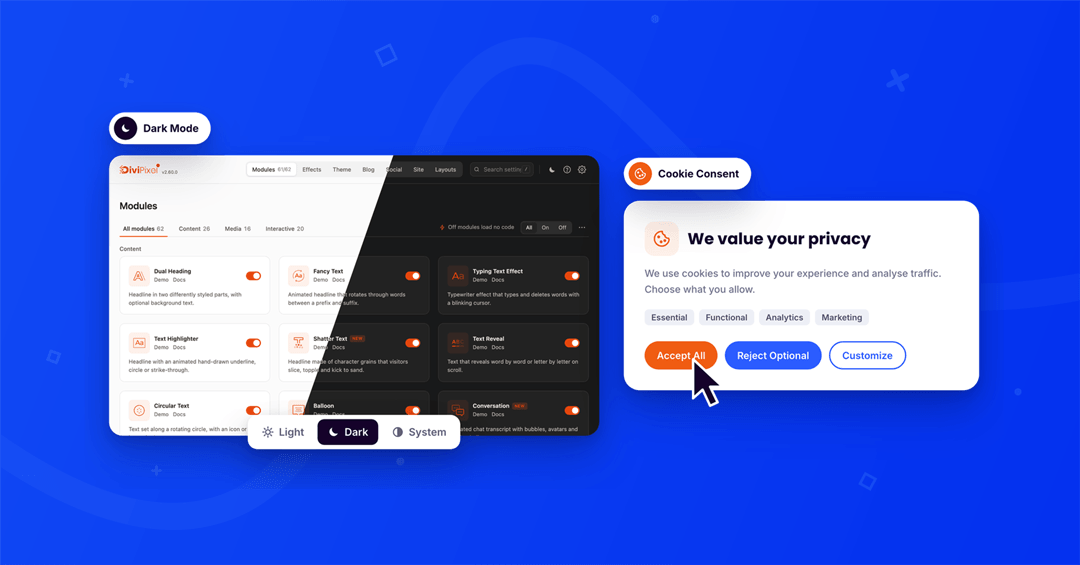

Last release we shipped the Business Hours module and the MCP integration, so AI assistants can build Divi 5 pages with Divi Pixel. This release brings two features many of you have asked for: Cookie Consent, a complete cookie banner built into Divi Pixel, and Dark Mode for the Divi Pixel settings.
With Cookie Consent you no longer need a separate cookie plugin for most sites. You design the banner right in the Divi 5 Visual Builder, choose which scripts wait for consent, and list your cookies on a declaration page. Dark Mode gives the Divi Pixel settings a dark theme that follows your system, or the side you pick.
Contents
Cookie Consent: a cookie banner you design in Divi 5
Most cookie plugins give you a banner that looks like every other banner on the web, with a settings page far away from your design. Cookie Consent works the other way around. It's part of Divi Pixel, it's styled with the same controls you use for your modules, and you see every change on the live banner while you make it.

Banner and preference center
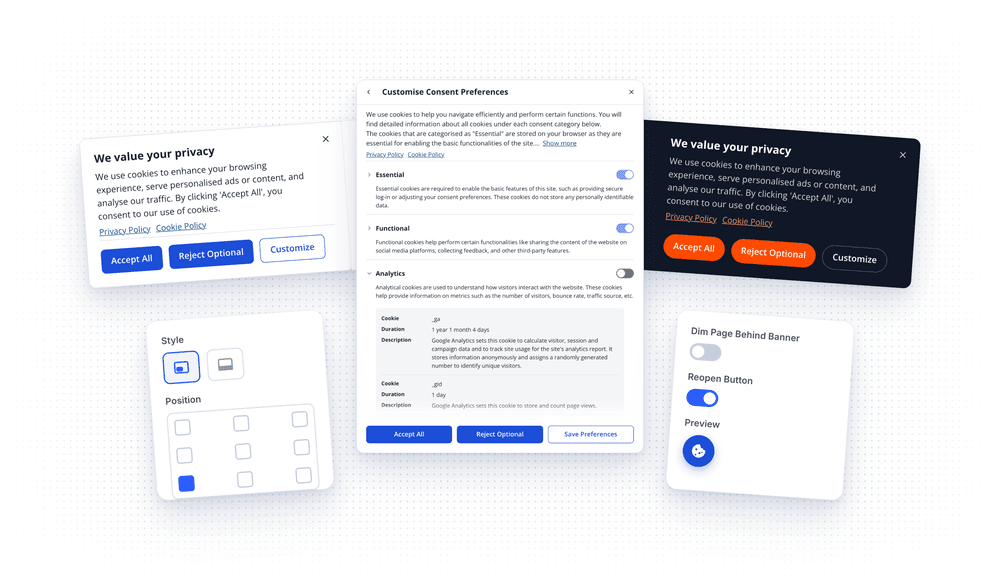
Visitors see a banner with Accept All, Reject Optional and Customize. Customize opens the preference center, where they switch each category on or off and expand it to see the cookies behind it.
- Banner or Bar. A compact box, or a full-width bar along the top or bottom of the page.
- Nine positions. Corners, edges or the center of the screen.
- Dim the page. Optionally dim the page behind the banner, so visitors decide before they continue.
- Reopen button. A small floating cookie button brings the banner back after a decision. Use your own icon or image, or add the [dipi_cookie_preferences] shortcode as a link in your footer instead.
- Animations and layouts. Fade, slide or zoom the preference center in, and place its buttons side by side or stacked. On phones it opens full screen.
Design it in the Visual Builder
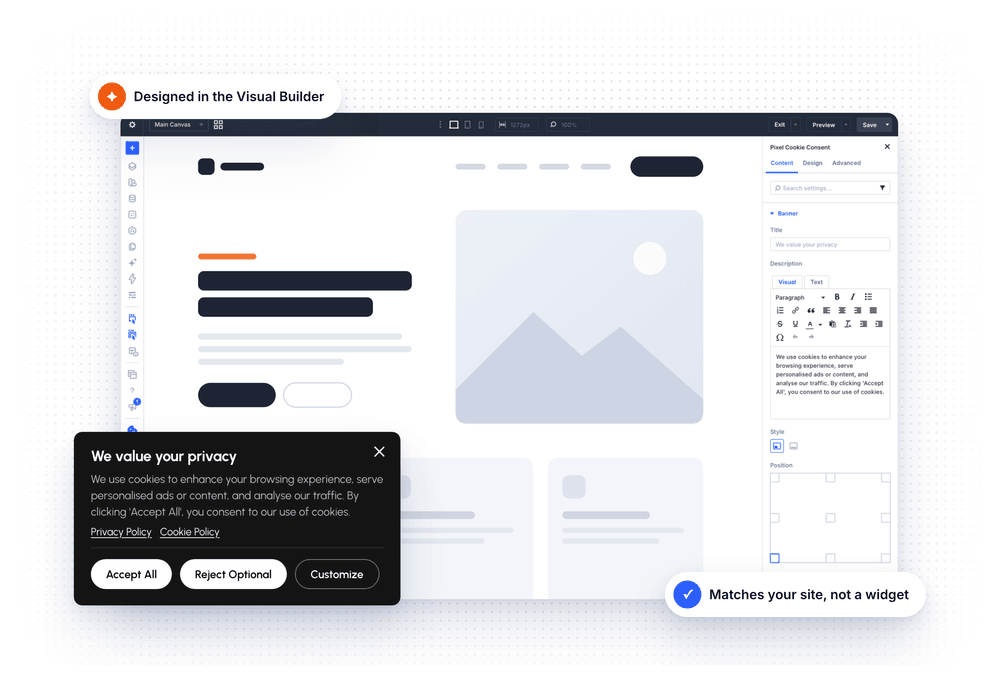
Open any page in the Divi 5 Visual Builder and click the new cookie button in the builder bar. A settings modal opens next to a live preview of your banner, with the familiar Content, Design and Advanced tabs.
- Edit texts in place. Click the title or the description on the preview and type. Descriptions support bold, links and other formatting.
- Full design control. Fonts, colors and hover colors, borders, corner radius, spacing and widths, for the banner, the buttons, the toggle switches and the policy links.
- Responsive. Set sizes separately for desktop, tablet and phone, just like in a module.
- Your policy links. Link your privacy and cookie policy right from the banner.
Four Categories
Cookies are grouped into Essential, Functional, Analytics and Marketing. Essential and Functional are always active by default, Analytics and Marketing stay off until the visitor agrees. You can rename every category, rewrite its description, decide which ones are always active, and hide categories your site doesn't use.
Scripts that wait for consent
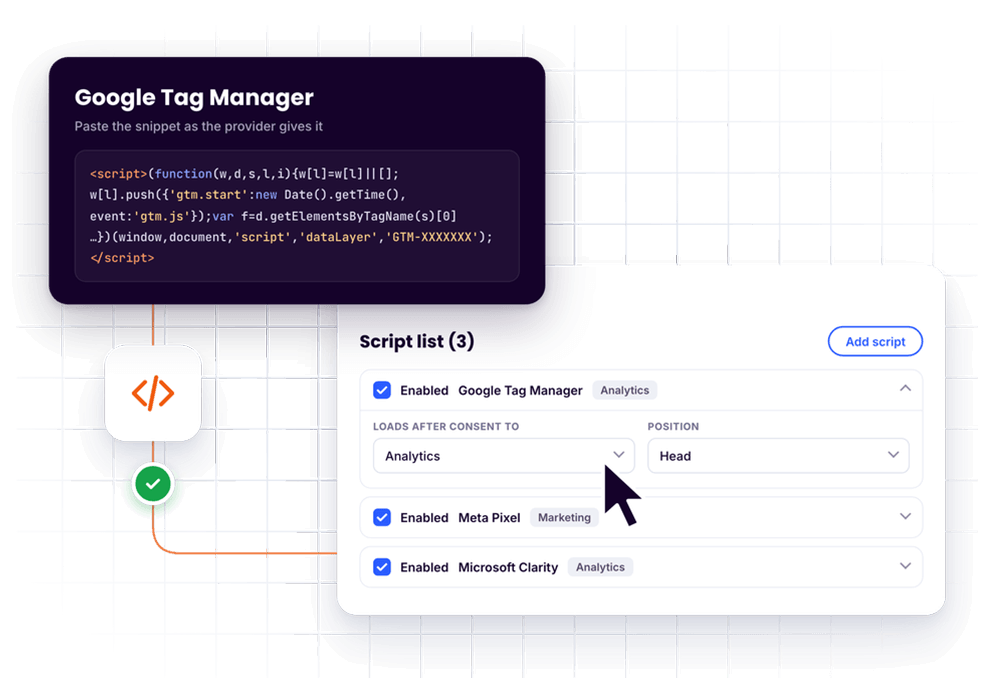
Under Divi → Divi Pixel → Site → Cookie Consent → Scripts, paste the code of a tracking tool, like Google Analytics, Meta Pixel, Hotjar or Microsoft Clarity, and assign it a category. Divi Pixel holds the script back and runs it only after the visitor allows that category. No changes to your theme files needed.
For developers, any script can wait for consent with a data-dipi-consent attribute, and a small JavaScript API (window.dipiConsent) lets you check and react to the visitor's choice.
Google Consent Mode v2 and the WP Consent API
Turn on Google Consent Mode v2 and Divi Pixel tells Google tags what the visitor allowed. Everything starts as denied, before any Google tag loads, and updates the moment the visitor decides. Cookie Consent also works with the WP Consent API, so other plugins that support it respect the same choice.
Divi Pixel modules that use cookies or third-party content follow the visitor's choice when you turn this on:
- YouTube embeds show a click-to-load placeholder. Nothing loads from YouTube until the visitor clicks the video or accepts Marketing cookies.
- Vote and Poll still count votes without consent, by IP instead of a cookie.
- Countdown only remembers a visitor's evergreen timer after consent.
Cookie declaration
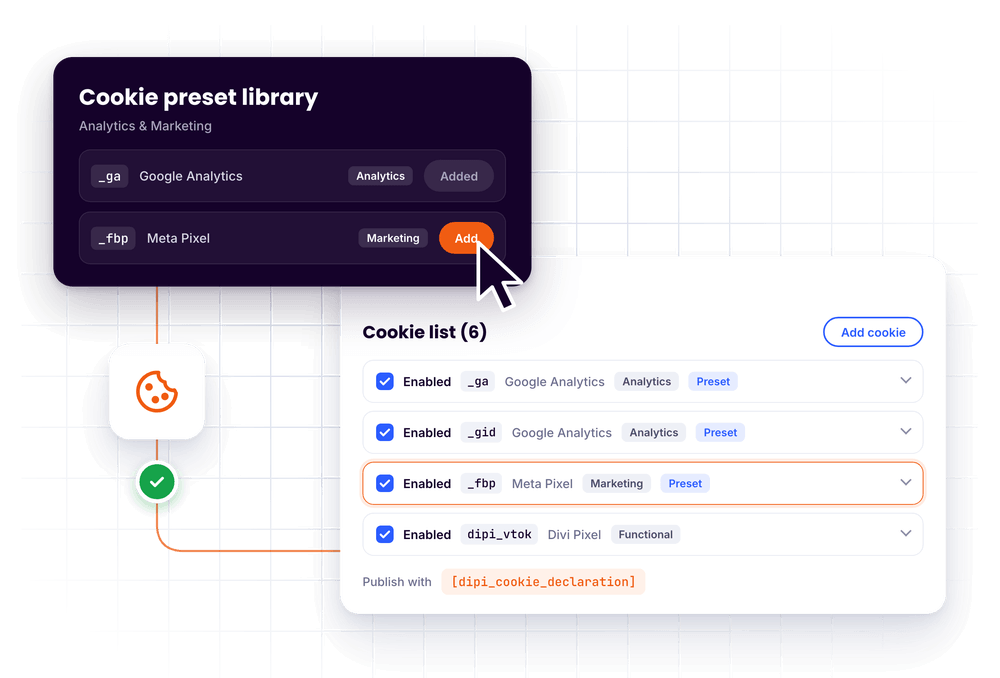
Add a list of the cookies your site uses with the [dipi_cookie_declaration] shortcode, on your cookie policy page for example. The same list appears under each category in the preference center.
- Pre-filled. The list starts with the cookies Divi Pixel sets and the Google Analytics cookies.
- Preset library. Add common cookies from Google Analytics, Google Ads, Meta Pixel, Microsoft Advertising, Microsoft Clarity, Hotjar, LinkedIn Ads, TikTok Ads and YouTube in one click.
- Detected cookies. While you browse your own site as an administrator, Divi Pixel notices cookie names it hasn't seen yet and suggests them, with a category and duration when it knows the cookie.
Fast and cache friendly
The banner is drawn in the visitor's browser, so every visitor gets the same cached page. Page caches and CDNs keep working, and the banner adds no extra server load.
A quick note: Cookie Consent helps you collect and respect consent, but no plugin can make a website legally compliant on its own. Only the scripts and integrations you set up are held back, so check which tools your site uses and add them under Scripts.
Dark Mode for the Divi Pixel settings
Many of you work late, or simply prefer dark interfaces. The Divi Pixel settings now come in a full dark theme.
- Light, Dark or System. A new button next to the ? in the top bar switches between light, dark and your system setting. The icon changes from a sun to a moon to a half circle as you click.
- Follows your system by default. If your computer switches to dark mode in the evening, Divi Pixel switches with it.
- Remembered for you. Your choice is saved to your WordPress user, so every team member can pick their own, and the page opens in the right theme without a flash.
- Everything is covered. Module cards, the Layouts browser, the save bar, dropdowns and the Cookie Consent lists all get the dark treatment. The rest of WordPress admin stays as it is.
How to use them
- Update Divi Pixel from Dashboard → Updates
- Go to Divi → Divi Pixel → Site → Cookie Consent and turn on Enable Cookie Consent
- Open any page in the Divi Visual Builder and click the cookie button in the builder bar to design the banner
- Add your tracking scripts under Cookie Consent → Scripts and your cookies under Cookie Declaration
- For Dark Mode, click the new theme button next to ? in the Divi Pixel top bar
Summary
This release adds Cookie Consent to Divi Pixel: a banner and preference center you design in the Divi 5 Visual Builder, scripts that wait for consent, Google Consent Mode v2, the WP Consent API, Divi Pixel modules that respect the visitor's choice, and a cookie declaration with a preset library. It also brings Dark Mode to the Divi Pixel settings, with a light, dark and system switch. As always, the release also includes a list of fixes and improvements, which you'll find in the changelog.
Update Divi Pixel from Dashboard → Updates to get both. Not using Divi Pixel yet? It includes 50+ Divi 5 ready modules and dozens of theme and builder enhancements, backed by our 14 day money back guarantee. See Pricing
Want to show us your cookie banner, share your setup or ask questions? Join the Divi Pixel Community on Facebook.

Maciej Ekstedt
Maciej, co-founder of Divi Pixel, is a passionate web designer with over 15 years of experience. He has developed dozens of loved Divi products that have earned recognition from the global community. When he's not working on new ideas, he enjoys gardening, walking his dog, and spending time with friends.
Enhance your Divi Theme with Custom Settings and New Modules. Start Creating Awesome Websites with the Divi Pixel
We offer a 14 Day Money Back Guarantee, so joining is Risk-Free!