Introducing the Divi Pixel Layout Library and a Brand New Interface
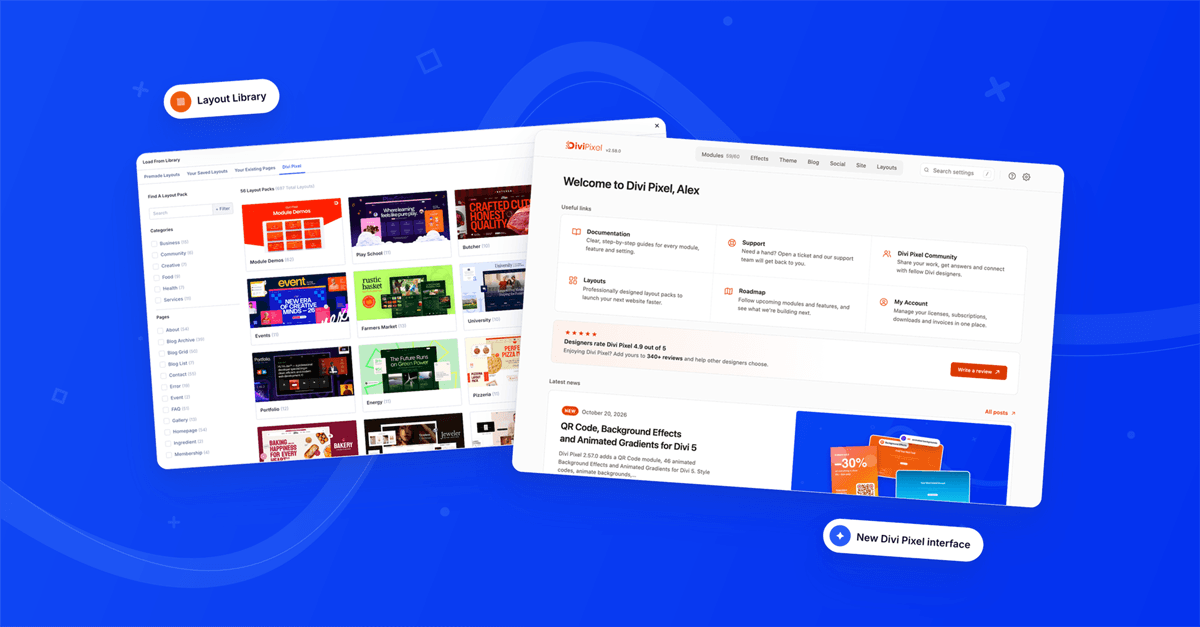

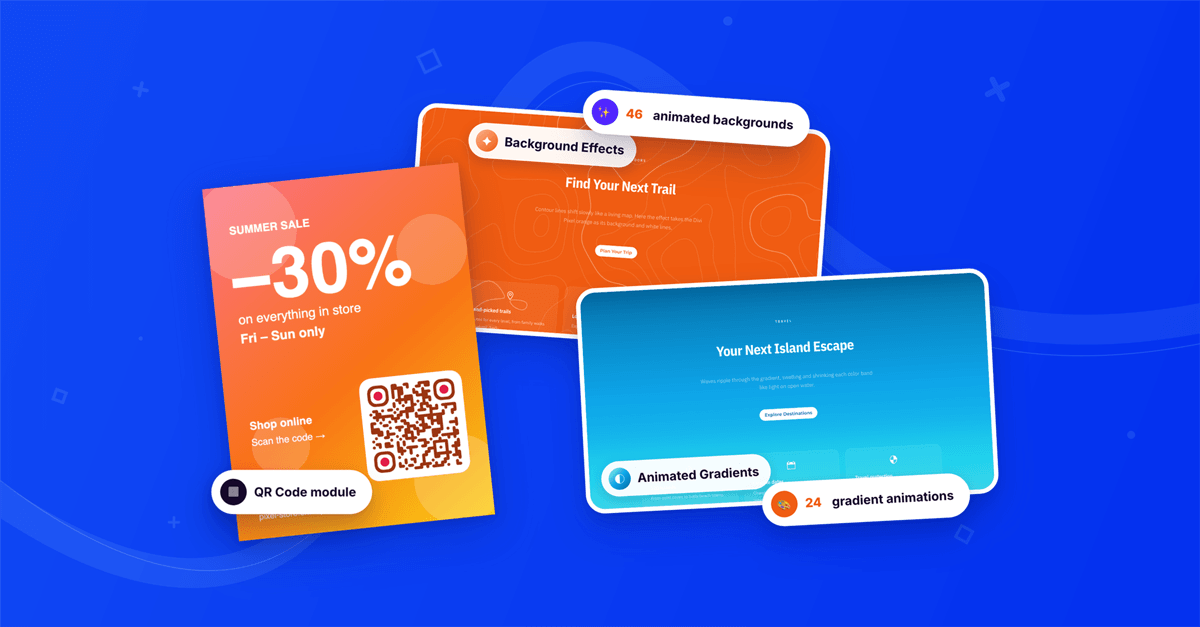
Last release we shipped the QR Code module, Background Effects and Animated Gradients, all about how your pages look and move. This release changes how you build with Divi Pixel altogether. It's a huge update, with two big additions: the new Layout Library and a completely new Divi Pixel interface.
The Layout Library puts complete website designs right inside the Divi 5 builder: 56 layout packs, 697 pages and 3,158 sections, ready to preview and insert in a few clicks. Add one section to the page you're working on, load a full page, or import a whole website with its menus, templates and settings. The new interface rebuilds the Divi Pixel settings from the ground up, so every module and option is easy to find, and it's also where you browse the packs.
Contents
Layout Library: 3,158 sections, right in the builder
A blank page is the slowest way to start a website. The Layout Library lets you start from a finished design instead, without leaving the Visual Builder. It's built into Divi Pixel, so there's no separate importer plugin and no files to download. Open it, pick a design and keep building.
The library covers 6 categories, from Business and Services to Food, Health, Creative and Community, with packs for agencies, cafes, lawyers, fitness studios, photographers, churches, universities and many more. A separate Module Demos pack collects the demos of our modules. Most sections use Divi Pixel modules, so the library is also a great way to see what they can do. Everything you import is regular Divi 5 content that you can edit like anything else on your page.
Import one section
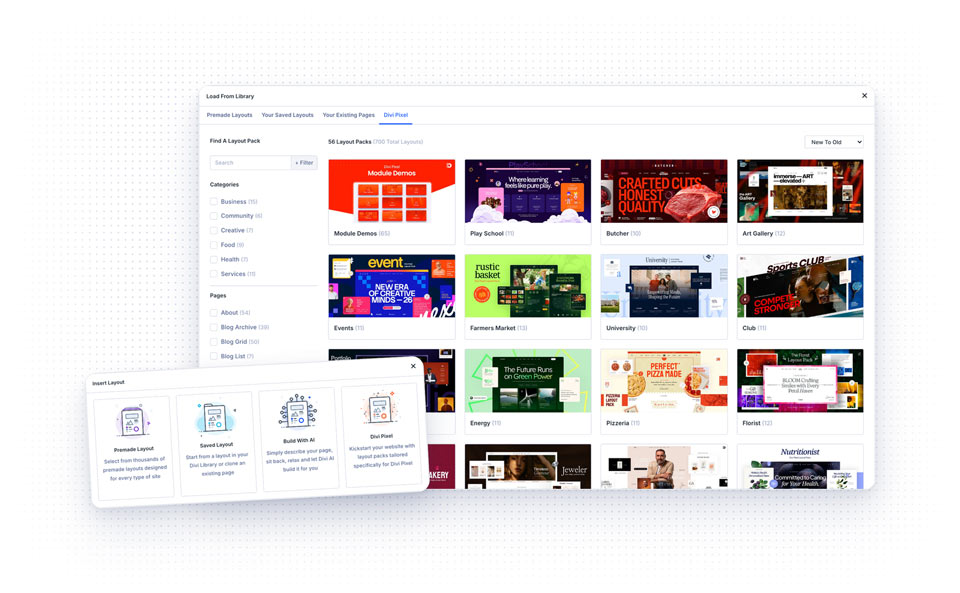
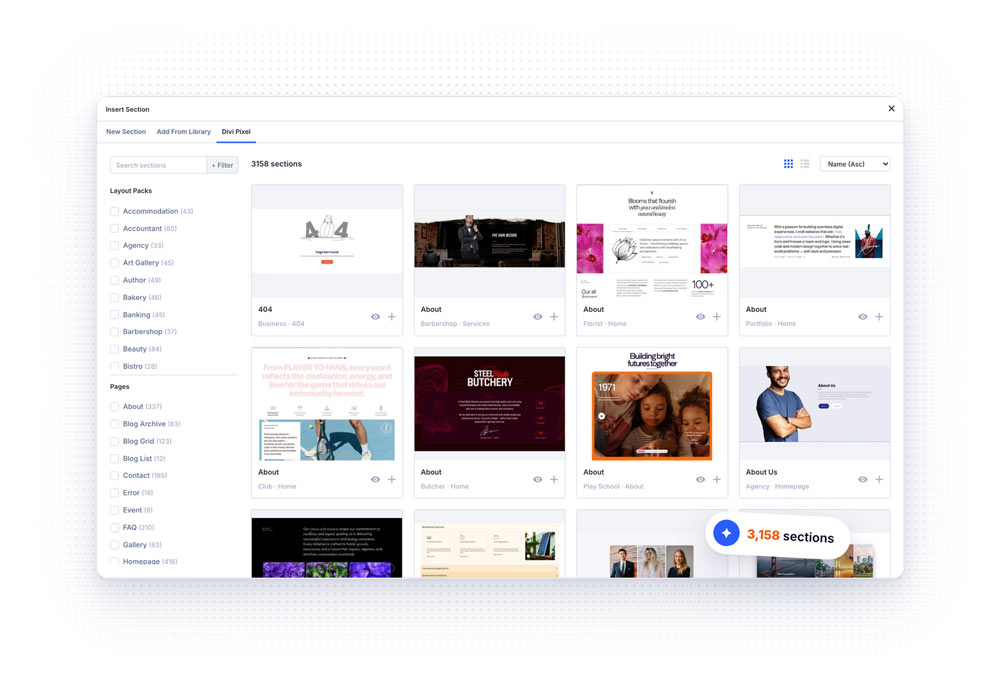
Click + to add a section and open the new Divi Pixel tab. Every section of every pack is there, and the one you pick lands exactly where you clicked.
- Search and filters. Search all sections, or filter them by Layout Pack and by Page, like About, Contact or Blog.
- Grid or list. Browse visual cards or a compact table. Sort by date, name or pack. Divi Pixel remembers your choice.
- Preview first. See any section at full size before you insert it.
Import one page
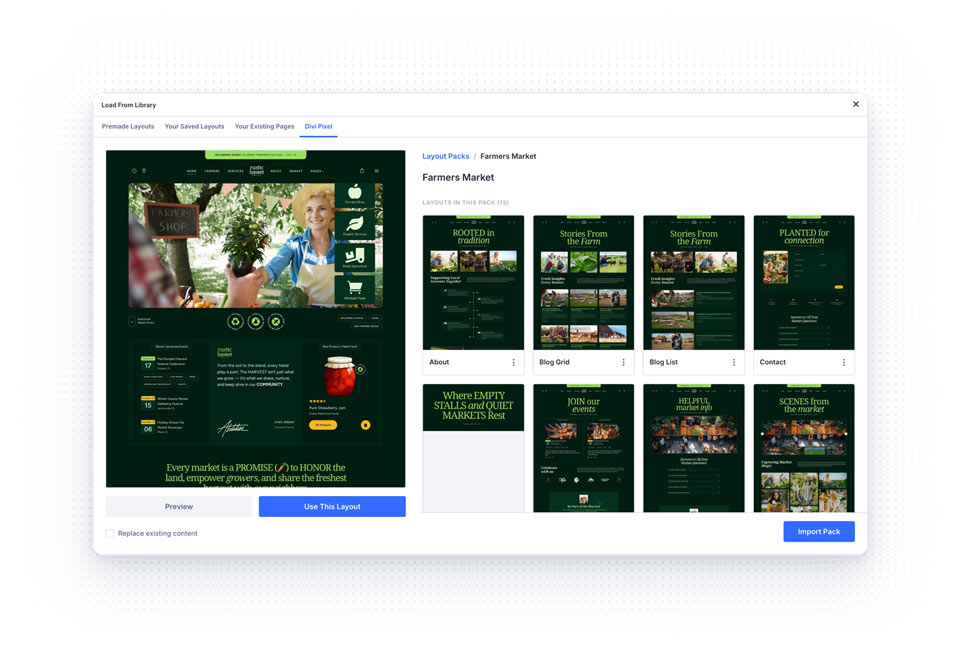
Choose Insert Layout → Divi Pixel on a new page, or open the Divi Pixel tab in Load From Library. Find a pack, open it and pick a page.
- Live preview. Preview renders the page on your own site, in Divi's preview window, without adding anything to your site.
- Scroll on hover. Move the cursor over a page card to scroll through its screenshot.
- Use the whole page or part of it. Use This Layout imports the full page, and View Sections lets you pick single sections from it.
- Add or replace. Add the layout to your current content, or turn on Replace existing content to start fresh.
What comes with an import
Most of our layouts use plain colors and styles, so they drop into your page as they are. If a layout does bring its own design assets, like presets, global colors, global variables, Divi Library layouts or off-canvas content, the library asks which of them to import, and only lists the ones it actually uses.
Images are downloaded to your own Media Library, so nothing on your site depends on our demo server. Divi Library layouts that a page needs, like the content of a tab or carousel slide, are created for you and aren’t duplicated when you import again.
Import a whole website
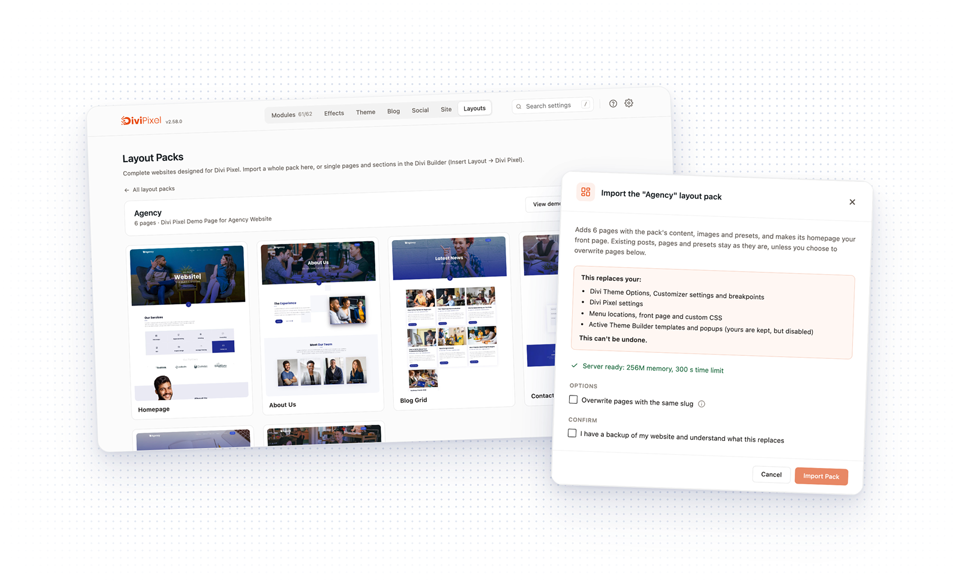
Import Pack turns a fresh WordPress install into a complete site. Open Divi → Divi Pixel → Layouts, or the pack in the builder, and import everything at once:
- Content. All of the pack's pages, blog posts, projects, testimonials, FAQ entries and popups.
- Site structure. Menus, Theme Builder templates and the homepage as your front page.
- Design. Presets, global colors, global variables, Divi Library layouts, off-canvas content and images.
- Settings. Divi Theme Options, Customizer settings, breakpoints, Divi Pixel settings and custom CSS, so the result looks like the demo.
Because a pack replaces site-wide settings, the import tells you exactly what will change before you start, and we recommend a backup first, as this can't be undone. Your existing posts, pages and presets stay as they are. Your Theme Builder templates and popups are kept but disabled, and your license and API keys are left alone. Turn on Overwrite pages with the same slug if you want pack pages to replace your own instead of creating copies. The old content is kept as a revision if your site keeps revisions.
The dialog also checks your server first and warns you if its limits are low (we recommend 256M of memory and a 300 second time limit). Images download in small rounds with a progress bar, so a large pack doesn't depend on one long-running request.
The new Divi Pixel interface
Divi Pixel has grown to more than 50 Divi 5 modules and dozens of effects and theme options, and the old settings page was never built for that many. So we rebuilt it. Your settings stay exactly as they are, but everything around them is new.
What's new:
- A clear top bar. Modules, Effects, Theme, Blog, Social, Site and Layouts sit in one row. License, integrations, import/export and reset are behind the gear icon.
- A start screen. A welcome page with the newest Divi Pixel features, links to the docs, support, roadmap and your account, and our latest articles.
- Instant search. Press / anywhere and type. Results cover every setting and module, you can pick one with the arrow keys, and Divi Pixel takes you straight to it and highlights it.
- Module cards. Every module has its own card with an icon and links to its demo and documentation. Filter by category (Content, Media, Interactive, Other) or by On and Off, and enable or disable all modules at once. Modules you turn off load no code.
- A browser for layout packs. The Layouts view shows all packs by category with search. Open a pack to go through its pages with the arrow keys or a swipe, jump to the live demo, or start Import Pack.
- A smarter save bar. Change something and a small bar appears with the number of unsaved changes. Click the number to see them and jump to any of them, then Save or Discard.
- Help in one place. The help menu links to the documentation, support and feature requests, and shows your license status and version at a glance.
One more change to note: the Layout Injector settings are now marked as Legacy. They still work, but will be removed in a future update, so build your custom headers, footers and 404 pages with the Divi Theme Builder instead.

How to use them
- Update Divi Pixel from Dashboard → Updates
- Open Divi → Divi Pixel to see the new interface, and press / to find any setting
- For a whole website, go to Layouts, open a pack and click Import Pack
- For a single page, open a page in the Divi Visual Builder and choose Insert Layout → Divi Pixel
- For a single section, click +, open the Divi Pixel tab and pick a section
Summary
This release adds the Layout Library to the Divi 5 builder: 56 layout packs, 697 pages and 3,158 sections you can preview and import one section, one page or one whole website at a time, with full control over the design assets that come along. It also brings a completely new Divi Pixel interface, with a clear top bar, instant search, module cards and a smarter save bar.
Update Divi Pixel from Dashboard → Updates to get both. Not using Divi Pixel yet? It includes 50+ Divi 5 ready modules and dozens of theme and builder enhancements, backed by our 14 day money back guarantee. See Pricing
Want to see what others build with them, share your own layouts or ask questions? Join the Divi Pixel Community on Facebook. We'd love to see the sites you create with the Layout Library.

Maciej Ekstedt
Maciej, co-founder of Divi Pixel, is a passionate web designer with over 15 years of experience. He has developed dozens of loved Divi products that have earned recognition from the global community. When he's not working on new ideas, he enjoys gardening, walking his dog, and spending time with friends.
Enhance your Divi Theme with Custom Settings and New Modules. Start Creating Awesome Websites with the Divi Pixel
We offer a 14 Day Money Back Guarantee, so joining is Risk-Free!